Auto layout is powerful, but sometimes it’s difficult to persuade it to do the right thing.
Basics
Automatic size
The window is automatically sized to fit the item(s) in the window.
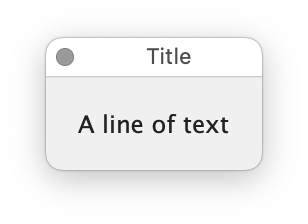
#target "InDesign"
#targetengine "session"

// Create palette
var palette = new Window("palette");
palette.text = "Title";
palette.spacing = 10;
palette.margins = 16;

// Add one line of text
palette.add("statictext", undefined, "A line of text", {name: 'info'});

palette.show();
Sizes and automatic layout
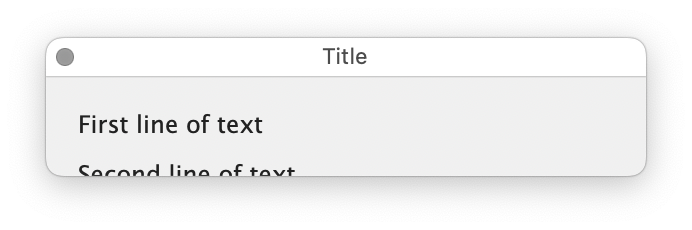
You can set the size of an element. When the window is created, that size is honored. Using automatic layout later might not keep the defined sizes, see further below.
#target "InDesign"
#targetengine "session"

// Create palette
var palette = new Window("palette");
palette.text = "Title";
// Left-align text
palette.alignChildren = ["left","top"];
palette.spacing = 10;
palette.margins = 16;
palette.size = {width: 300, height: 50};

// Add two lines of text
palette.add("statictext", undefined, "First line of text");
palette.add("statictext", undefined, "Second line of text");

palette.show();
Automatic layout when items change
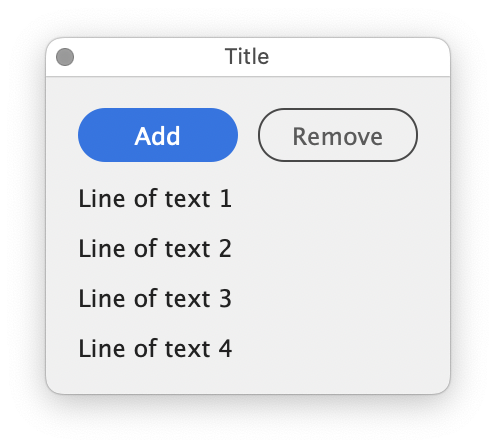
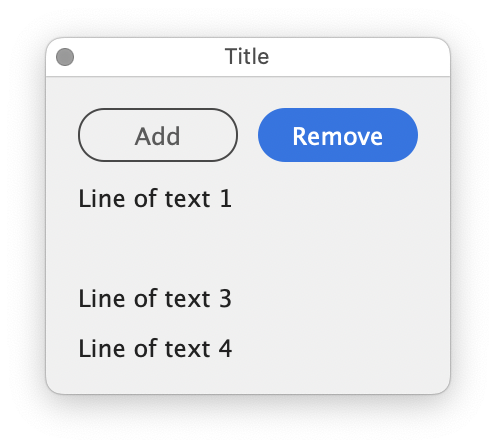
When an item is added or removed, the window can update its size and layout. When items get added to the window, most of the time the window will automatically resize. When an item is removed, the window is not automatically resized.
#target "InDesign"
#targetengine "session"

// Create palette
var palette = new Window("palette");
palette.text = "Title";
palette.alignChildren = ["left","top"];
palette.spacing = 10;
palette.margins = 16;

line_count = 0;

// Buttons
var button_group = palette.add("group", undefined);

// Text
var text_group = palette.add("group", undefined, "Text");
text_group.orientation = "column";

// Add button to add a line of text
var button_add = button_group.add("button", undefined, "Add");
button_add.onClick = function () {
  line_count += 1;
  text_group.add("statictext", undefined, "Line of text " + line_count);
  // palette.layout.layout(true);
}
To update the size of the window and remove unnecessary white space, we invoke layout.layout(true) on the window. The layout of the window will be updated with recalculated values for size and position.
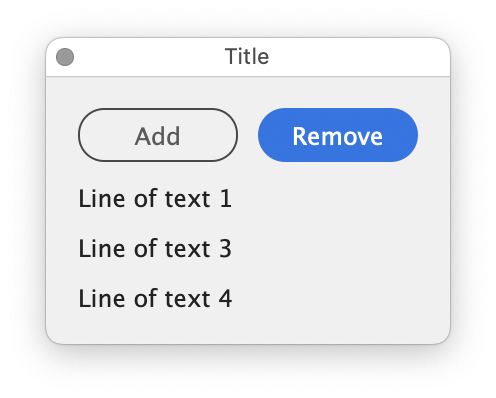
palette.layout.layout(true); The layout() function has one parameter: recalculate. Default is false.
Inner items define the size of the containing items
If you set the size or preferredSize of an element, and that element contains an element that has a different size set, auto layout will recalculate the sizes of the containing elements to fit the size of the contained element.
If you set the size or preferredSize of an element, and that element contains an element that has no size set, auto layout will recalculate sizes of the containing items to fit the item as snuggly as possible.
// Create palette
var palette = new Window("palette");
palette.text = "Title";
palette.spacing = 10;
palette.margins = 16;

// Add button to add a line of text
var button_add = palette.add("button", undefined, "Add text");
button_add.onClick = function () {
  // Replace with one of the options below.
  // 1. Will recalculate, keeps the size of the text item.
  // 2. Recalculate only some items, window size unchanged.
  // 3. Empty groups keep their defined size.
  // 4. Groups with a defined size get recalculated when they contain an item without a size.
}

var container = palette.add("group", undefined);
container.preferredSize = {width: 300, height: 160};
container.orientation = "column";

var white = [1,1,1,1];
setBackgroundColor(container, white);

palette.show();

// Set the background color of a group
function setBackgroundColor(group, color) {
  var grgr = group.graphics;
  var brush = grgr.BrushType.SOLID_COLOR;
  grgr.backgroundColor = grgr.newBrush( brush, color );
}
Option 1
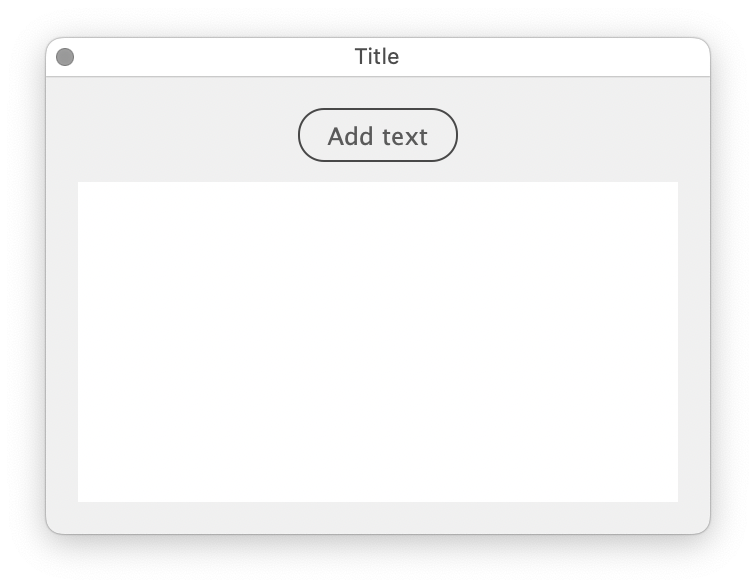
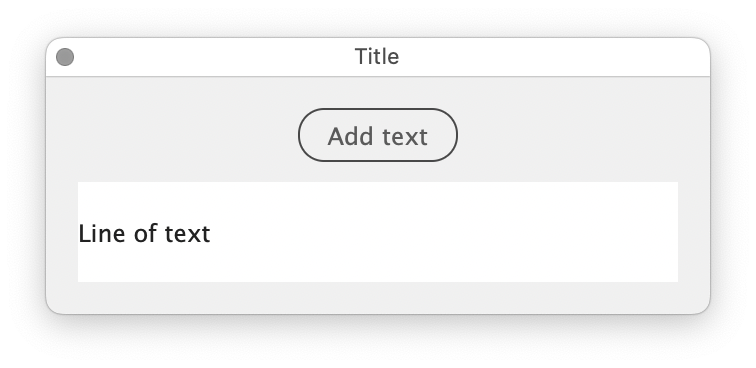
This will recalculate the size of container and keep the sizes set on the added text items. At first the window will get smaller to fit around the smaller text item, then grow when more text is added
button_add.onClick = function () {
  // Add text item
  container.add(
    "statictext",
    {x: 0, y:0, width: 300, height: 50},
    "Line of text "
  );
  // Auto layout window
  palette.layout.layout(true);
};
Option 2
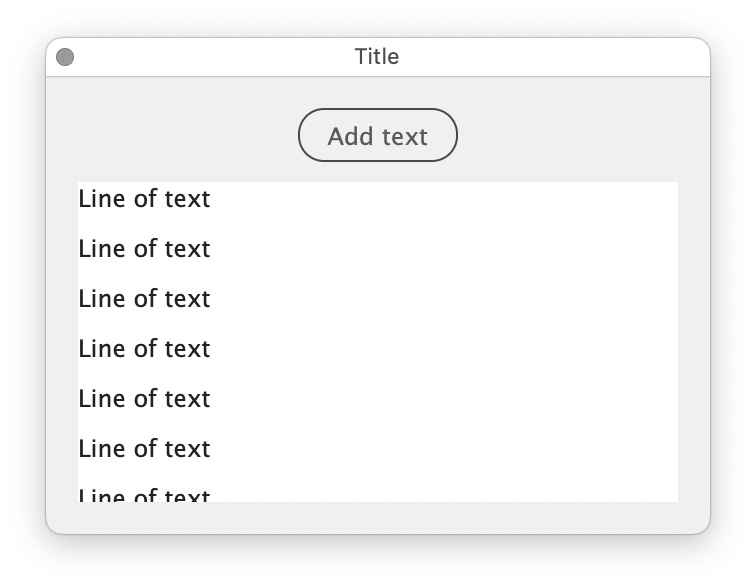
This will layout the items in group container, it will not recalculate the size of that group and will keep the size of the window the same. Eventually, as more text items are added and the sizes of container and window do not change, text items will be clipped.
button_add.onClick = function () {
  // Add text item
  container.add(
    "statictext",
    undefined,
    "Line of text "
  );
  // Auto layout group, not window
  container.layout.layout(true);
};
Option 3
And empty group with a set size will behave the same as the text items in option 2. The size of container and window will recalculated, the sizes of the groups are honored. First the window will get smaller to fit around container, then grow when more groups are added.
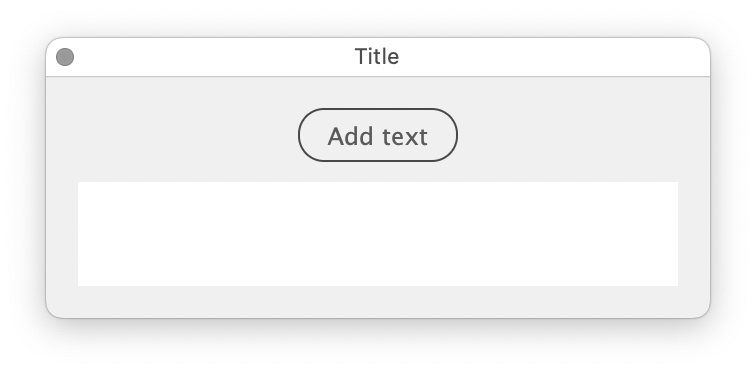
button_add.onClick = function () {
  // Add group with defined size
  container.add(
    "group",
    {x: 0, y:0, width: 300, height: 50}
  );
  // Auto layout window
  palette.layout.layout(true);
};
Option 4
Containing items like groups and windows with a defined size get recalculated when they contain an item without a size.
Setting a preferredSize on cell has no effect either. Inner items define the size of the containing item.
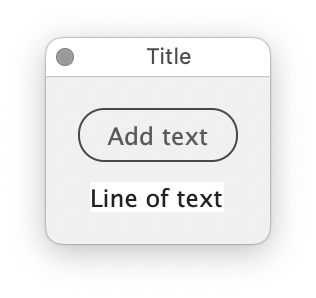
button_add.onClick = function () {
  // Add group with defined size
  var cell = container.add(
    "group",
    {x: 0, y:0, width: 300, height: 50}
  );
  // Add text item without defined size
  cell.add(
    "statictext",
    undefined,
    "Line of text "
  );
  // Auto layout window
  palette.layout.layout(true);
};
Some surprises
Somewhat surprising things I have seen (in InDesign 21.6 on macOS 15.7.9). Maybe my expectations are wrong, maybe I don’t know enough about JavaScript, maybe I’m not smart enough to understand the logic.
Notation
There are different ways to specify sizes.
// Array with numbers for width and height.
// Okay.
palette.size = [300, 50];

// Array with strings for width and height.
// Bit weird but okay.
palette.size = ["300", "50"];

// Empty string results in 0,0.
// This feels incorrect, ‘nothing’ is not ‘zero’?
palette.size = ["", ""];

// Key/value pair.
// Okay.
palette.size = {width: 300, height: 50};

// String pretending to be a key/value pair.
// Why?
palette.size = "width: 300, height: 50";

// Setting width or height individually only works
// when size is defined earlier.
// Understandable but… why?
palette.size.width = 300; // Error: undefined is not an object
palette.size.height = 60; // Error: undefined is not an object
Use preferedSize with auto layout
If you set the size of an element and use auto layout, it has no effect. Use preferredSize.
A -1 value does not result in recalculation
If you set a -1 value somewhere, auto layout will not recalculate anything, contrary to what is mentioned in documentation.
Conclusion
It was difficult to understand why some things didn’t seem to work at all, until I found out that one missing size was enough to trigger a recalculation on all elements.
I think the best way to think about auto layout is that contained items define the size of the containing item.
It’s no help that I can’t find up-to-date, official documentation.
Learn more
- LayoutManager object in an (unofficial?) Adobe Extendscript Scripting Guide
- Peter Kahrel’s Script UI For Dummies
- Joonas Pääkkö’s dialog builder (Chromium browsers only)